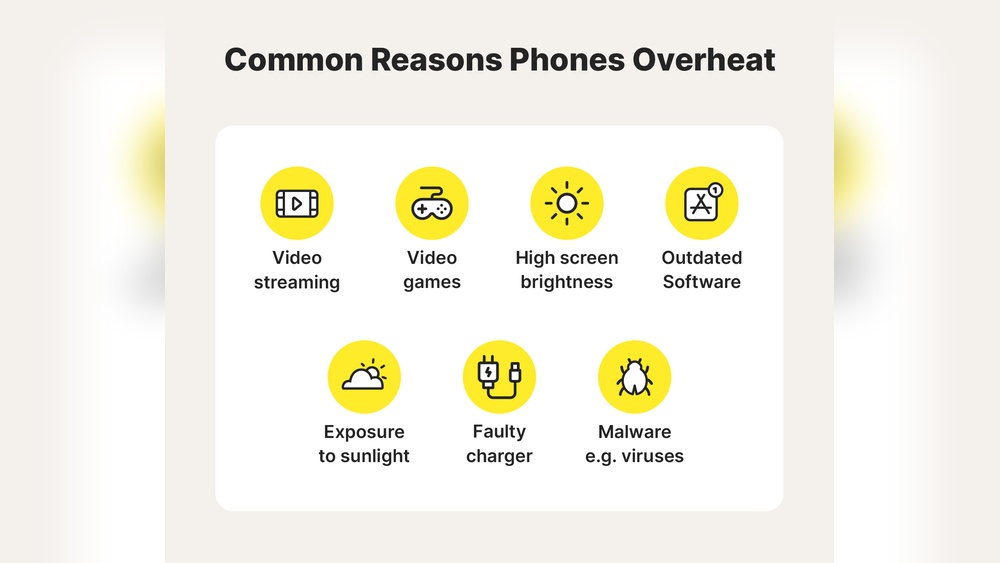

Your phone feels hot. Too hot to touch sometimes.
That’s a sign something isn’t right. Phones heat up for many reasons, and ignoring it can harm your device. Smartphones handle a lot of tasks at once — streaming, gaming, browsing, and charging. All these actions create heat. But constant overheating can slow performance, drain battery life, and even damage internal parts.
Understanding what causes your phone to overheat helps you protect it and keep it working smoothly. This guide explains the most common reasons behind phone overheating and what you can do to fix it. By learning these simple causes, you can prevent serious issues and keep your phone cool, safe, and ready for daily use.
Rising Heat In Modern Smartphones
Modern smartphones are small power machines. They run multiple apps, handle HD videos, and process huge amounts of data every second. But all that power creates one common problem — heat.
Think about how your phone feels after a long video call or gaming session. That warmth isn’t just uncomfortable; it’s a sign your phone is working overtime. The more your device pushes its limits, the higher the temperature climbs.
I once noticed my phone slow down while editing photos on a sunny day. It wasn’t broken — it was just hot. That moment taught me that heat isn’t only about comfort; it’s about performance and longevity.
How Temperature Affects Phone Performance
Your phone’s processor works like your brain under pressure — too much heat makes it struggle. When the temperature rises, the system automatically slows down to protect its hardware. This is called thermal throttling.
You may notice apps lagging, videos buffering, or the touchscreen becoming less responsive. The battery also drains faster because it needs more energy to cool down.
Some phones even pause charging when they detect high heat. That’s a smart move, but it can be frustrating when you’re in a hurry. So keeping your phone cool means keeping it efficient.
Signs Your Phone Is Getting Too Hot
How do you know your phone is crossing the line from warm to overheated? It gives plenty of clues if you pay attention.
- The back of the phone feels unusually hot to touch.
- Brightness dims automatically even when you didn’t change it.
- Apps crash or freeze more often than usual.
- Charging slows down or stops altogether.
- The battery drains much faster than normal.
Sometimes, you might even get a temperature warning on the screen. That’s your phone’s way of saying, “Let me rest.”
Ask yourself — do you often keep your phone under direct sunlight or use it while charging? Small habits like these quietly push your phone’s temperature up. Adjusting them can make a big difference in how your device performs and how long it lasts.
Credit: www.avast.com
Background Apps Running Wild
Your phone feels hot even when you aren’t using it? That’s often a sign that background apps are working overtime. These hidden processes keep running, draining your battery and pushing your phone’s processor to its limits.
I once noticed my phone getting unusually warm during a commute. I wasn’t streaming or gaming—just checking messages. After digging into my settings, I found multiple apps syncing updates nonstop. That small discovery changed how I manage my phone daily.
Unnoticed Processes Consuming Power
Many apps continue working even after you close them. Social media platforms, email services, and even weather apps constantly refresh content behind the scenes. This silent activity eats up energy and generates heat.
Think about the number of apps you’ve opened today. Some may still be running tasks you never asked for—checking notifications, updating feeds, or tracking your location. Each of these actions forces your phone’s processor to stay active longer than necessary.
It’s easy to ignore what we don’t see, but those unseen processes are often the biggest reason your phone feels like a pocket heater. Wouldn’t it make sense to stop that unnecessary workload?
Simple Ways To Control App Activity
You can take charge by reviewing which apps run in the background. Go to your phone’s settings and look for battery or app management options. Most devices let you restrict apps from using data or refreshing content when not in use.
- Check battery usage: Identify apps using too much power.
- Disable background refresh: Stop apps from updating automatically.
- Close unused apps: Swipe away apps you no longer need open.
- Update apps regularly: Developers often fix overheating issues in updates.
Try setting a weekly reminder to review your app activity. It takes only a few minutes but can save hours of frustration from overheating and battery drain. Have you ever noticed how your phone cools down almost instantly after closing background apps? That’s proof you’re in control.
Heavy Gaming And Media Usage
Your phone feels like a mini oven after a few hours of gaming or streaming? You’re not alone. High-quality games and HD videos push your phone’s hardware harder than simple texting or browsing. The result—heat builds up fast, and your device struggles to keep cool.
I once spent hours playing a high-graphic racing game on my phone during a flight. Halfway through, the screen brightness dropped, and the performance slowed down. That was my phone’s way of saying, “I’m overheating!” It’s a common issue that reveals how demanding modern mobile entertainment has become.
Graphics-intensive Tasks Pushing Limits
Games with detailed visuals, real-time effects, and large maps force your processor and GPU to work non-stop. Add high screen refresh rates, and the battery drains quickly while generating excess heat. Your phone’s slim design leaves little room for proper ventilation, which makes the situation worse.
Streaming 4K videos for hours has a similar effect. The constant data processing and display brightness contribute to rising temperatures. Ask yourself—how often do you give your phone a break between gaming sessions or binge-watching marathons?
- Reduce in-game graphics settings to lower the load.
- Play in shorter intervals with breaks in between.
- Avoid charging while gaming—it doubles the heat output.
Cooling Strategies During Long Sessions
Simple actions can make a big difference. Keep your phone on a hard surface instead of a bed or couch to help air circulate. Remove the case during heavy use—some cases trap heat and slow cooling.
You can also use an external fan or cooling pad designed for phones. They’re inexpensive and effective for gamers who play long hours. Lowering brightness and turning off background apps reduces workload and helps your phone stay cooler.
Notice if your phone feels unusually hot to touch. That’s your cue to pause the game or video, let it rest, and start fresh after a few minutes. Small adjustments today can save your battery health and prevent long-term damage.
Credit: us.norton.com
Battery Health And Charging Habits
Your phone’s battery plays a huge role in how hot your device gets. The way you charge it, how long you keep it plugged in, and even the type of charger you use can all raise the temperature. Have you ever noticed your phone warming up right after you plug it in for a quick charge? That’s not just coincidence — it’s a sign your charging habits might need some attention.
Over time, poor battery care doesn’t just make your phone warm; it can shorten battery life and slow performance. Paying attention to small details during charging can make a big difference. Let’s look at how fast charging and safe battery practices affect temperature.
Impact Of Fast Charging On Temperature
Fast charging is convenient, but it pushes a lot of power through your battery in a short time. This sudden energy flow creates heat, especially if your phone is charging while you’re using it. You may feel the back of your phone getting hot after just a few minutes.
Manufacturers design fast chargers to control heat, yet constant use still wears the battery down faster. Imagine charging your phone while streaming videos — the processor works hard, the battery fills quickly, and the temperature spikes. These small heat cycles add up and reduce battery health over months.
So, ask yourself — do you really need to fast charge every single time? Using regular charging overnight or during work hours keeps the battery cooler and more stable. The extra time pays off in long-term battery life.
Safe Battery Practices To Reduce Heat
Simple habits can help you avoid overheating. Start by unplugging your phone once it’s fully charged; leaving it connected makes the battery work harder to stay at 100%. Also, avoid charging under pillows or blankets — trapped heat has nowhere to go.
Use original or certified chargers. Cheap cables may deliver inconsistent voltage, which creates extra heat. Keep your phone on a cool surface while charging; even a wooden desk works better than a soft bed.
Try these quick habits:
- Charge in short sessions instead of one long cycle.
- Keep your phone out of direct sunlight while charging.
- Turn off heavy apps or games during charging.
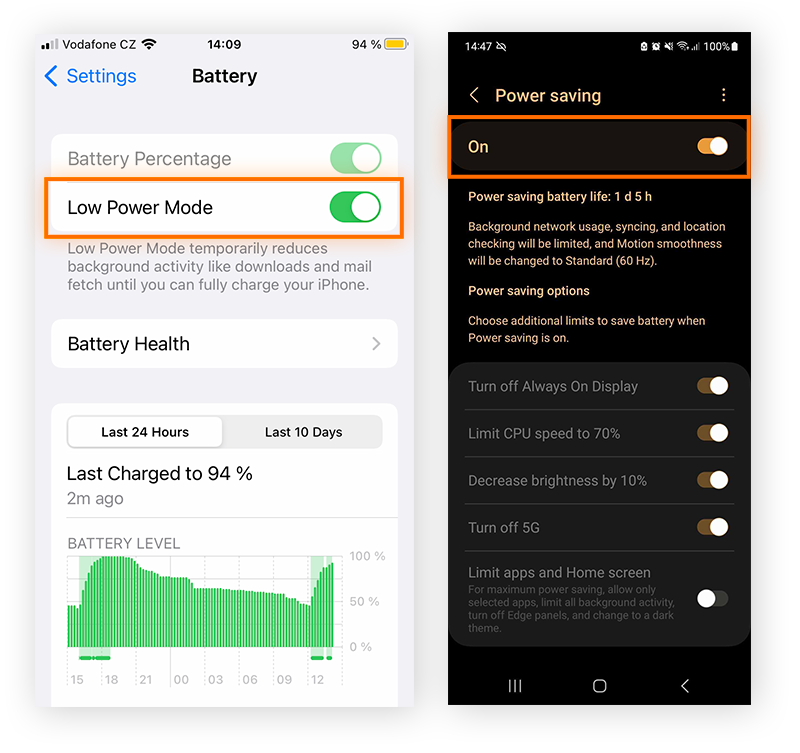
- Use battery saver mode if your phone tends to warm up quickly.
Your phone doesn’t have to run hot just because it’s charging. Adjusting small behaviors can keep it cool, safe, and running smoothly for much longer.
Environmental Factors At Play
Your phone’s temperature doesn’t rise only because of heavy use. Sometimes, the environment around you silently pushes it toward overheating. Understanding these triggers helps you protect your device before it starts acting up.
Think about your daily routine. You might leave your phone on a car seat or by a window, not realizing how fast heat builds up there. Small habits like these can have big effects on performance and battery health.
Exposure To Direct Sunlight
Leaving your phone under direct sunlight, even for a short period, can make its body hot enough to slow down or shut off. The display, battery, and processor all struggle when exposed to UV rays. It’s not just about the temperature outside—it’s about how long your phone sits in that heat.
I once forgot my phone on a café table outdoors, and within minutes, it was too hot to touch. The screen dimmed automatically to protect its circuits. That moment taught me to always keep my phone in the shade or inside a bag.
- Keep your phone away from windows and car dashboards.
- Use protective covers that reflect heat instead of absorbing it.
- Activate battery saver mode when outdoors to reduce strain.
Ask yourself—how often do you leave your phone exposed to sunlight without noticing? That small oversight could be shortening its lifespan.
Temperature Extremes Affecting Components
Extreme cold or heat doesn’t just slow your phone—it can damage internal parts over time. The battery chemistry reacts poorly to sudden temperature changes. When overheated, components expand slightly, stressing delicate circuits.
During winter, you might notice your phone battery draining faster. That’s the cold interfering with how efficiently power moves through the system. In contrast, summer heat forces your phone’s processor to work harder, raising internal temperatures even more.
Here’s a quick look at how temperature extremes affect performance:
| Condition | Impact on Phone | Quick Fix |
|---|---|---|
| High Heat (above 35°C) | Battery swells, phone slows down | Turn off unused apps, keep in cool place |
| Extreme Cold (below 0°C) | Battery drains fast, screen response lags | Keep phone close to body warmth |
Your phone isn’t built to survive every climate challenge. Small precautions—like storing it properly and avoiding temperature swings—can keep it running smoothly longer. Are you treating your phone like it’s weatherproof, or are you giving it the protection it actually needs?
Faulty Hardware Or Poor Design
Sometimes, your phone overheats not because of how you use it, but because of how it was built. A poorly designed device or hardware flaw can make even simple tasks feel like a burden on your phone’s system. You might notice the back of your phone getting hot even when you’re just scrolling through social media — that’s a sign of deeper design or hardware inefficiency.
I once owned a mid-range phone that got uncomfortably warm during short video calls. It wasn’t due to heavy use; the device simply had a weak cooling setup. Small design choices like this can lead to constant heat buildup and shorten your phone’s lifespan.
Processor Efficiency And Heat Generation
The processor acts as the brain of your phone. If it’s not built to handle multiple tasks smoothly, it ends up generating more heat. Older or budget chips often struggle with demanding apps, creating unnecessary heat spikes.
Ask yourself — how often do you multitask between apps or stream videos for hours? Each time you do, your processor works harder and produces more heat. Choosing phones with efficient processors can save you from frequent overheating and battery drain.
Many newer models include advanced cooling systems or optimized chipsets to manage temperature. Before buying a phone, look into its processor specs and thermal management features. That simple step can prevent hours of frustration later.
Cases And Covers That Trap Warmth
Your phone case might be stylish, but it can also act like a heat trap. Thick, non-breathable covers stop heat from escaping, especially during charging or gaming. You might feel your phone heating up faster just because it’s covered too tightly.
I learned this the hard way when my phone kept shutting down during summer days. Removing the heavy leather case instantly reduced the temperature. It turned out the case was blocking airflow, forcing heat to stay inside.
Next time your phone gets warm, try using a lighter case or removing it for a while. Materials like silicone or thin plastic allow better heat dissipation. A small design choice can make a big difference in how comfortable your phone stays during daily use.
Software Bugs And System Updates
Your phone might feel like a mini oven after a few minutes of use, and the reason could be hidden inside its software. Tiny coding errors or outdated system files can make your device work harder than it should. I once noticed my phone heating up just while checking messages—the culprit was a rogue app update that kept the processor running nonstop.
Software bugs and missed updates often trigger silent chaos in your phone’s system. They push the CPU to its limits, drain battery faster, and even slow down performance. So, how do these issues really cause overheating, and what can you do about them?
Glitches Causing Excessive Cpu Use
Every app you open uses a bit of your phone’s processing power. But sometimes, a buggy app refuses to “sleep” after you close it. That’s when the CPU keeps running in the background, producing unwanted heat.
You might notice this after installing a new app or update. Your phone feels hot even when you’re not using it. That’s a sign something inside the software is misbehaving—like a game that keeps syncing data or a messaging app stuck in a loop.
- Check your battery usage: Go to settings and see which apps are consuming power abnormally.
- Close background apps: Swipe them away and restart the phone to reset the CPU load.
- Update or uninstall problem apps: Developers often fix overheating bugs in newer versions.
Have you ever noticed your phone heating up after a social media update? That’s often a sign the app has a glitch that needs fixing. Paying attention to these patterns helps you catch the issue before it becomes serious.
Benefits Of Keeping Your Os Up To Date
Outdated software doesn’t just look old—it can make your phone work harder and hotter. New system updates often contain fixes for known bugs that cause overheating. They also improve how your phone manages energy and background tasks.
I used to skip updates because I thought they slowed my phone down. But after installing one recently, I noticed my device stayed cooler during video calls. That update had optimized how the CPU handled heavy apps.
| Action | Impact on Overheating |
|---|---|
| Install system updates regularly | Reduces known bugs and improves CPU efficiency |
| Enable automatic updates | Ensures you always have the latest fixes |
| Restart after each update | Helps the system apply changes properly |
Think about it—how often do you delay updates? Each missed one is a chance for your phone to run outdated code that overheats. Staying current with your OS is a simple step that keeps your phone cooler and more reliable.
Network Connectivity And Signal Search
Your phone doesn’t just sit quietly in your pocket—it’s constantly working behind the scenes to stay connected. When signal strength drops, your phone pushes harder, scanning for a stable connection. That hidden struggle can quickly raise the temperature, leaving your phone hot and battery drained.
Think about the times you’ve traveled through remote areas or underground stations. Your phone keeps looking for a network, jumping between towers, and using more power than usual. That continuous effort is one of the silent causes of overheating.
Constant Searching For Weak Signals
Your phone’s antenna works overtime when the signal is weak. It repeatedly scans for available networks and attempts to reconnect. This nonstop search drains the battery and produces extra heat.
I noticed this during a road trip through countryside areas. My phone felt unusually hot even though I wasn’t using it much. The culprit was the constant signal hunt—it was trying to stay online with almost no service available.
Think about how often you’re in low-signal zones—elevators, basements, or rural roads. Each of those moments forces your phone to work harder. You can reduce overheating by understanding how signal strength affects your device’s workload.
Tips To Minimize Network Strain
There are simple steps you can take to help your phone cool down and conserve power. Below are practical ways you can minimize network stress:
- Use Airplane Mode: If you’re in a place with poor signal, switch to airplane mode. This stops your phone from searching nonstop for a network.
- Connect to Wi-Fi: Wi-Fi uses less power than mobile data. When available, stay connected to a stable Wi-Fi network.
- Avoid using mobile data in weak signal areas: Streaming or downloading when your signal is low adds to heat and battery strain.
- Keep software updated: Updates often improve how your phone manages connectivity, helping it work more efficiently.
- Check background apps: Apps that constantly sync or refresh data can worsen overheating when the signal is weak.
Next time your phone feels warm, ask yourself where you are and how strong your signal is. You might find the answer hiding in your network bar. By paying attention to connectivity, you can keep your phone cooler and your battery lasting longer.
Preventive Measures For A Cooler Device
Your phone doesn’t have to feel like a mini heater in your hand. A few smart habits and simple tools can help keep it cool even during heavy use. I once noticed my phone shutting down after recording videos outdoors—the heat wasn’t just from the sun, but from my own usage mistakes. That moment taught me how small changes can make a big difference.
Best Practices For Daily Use
Try to keep your phone out of direct sunlight. Leaving it on a car dashboard or near a window can quickly raise its temperature. It’s better to store it in a shaded or cooler spot when not in use.
Reduce the number of apps running in the background. Each open app adds a bit of stress to your phone’s processor, which increases heat. Check your recent apps regularly and close the ones you don’t need.
Charging habits matter too. Avoid using your phone while it’s charging for long periods. I used to scroll social media while charging and noticed my phone getting warm. Once I stopped, the difference was clear—less heat and longer battery life.
Quick checklist for cooler daily use:
- Use a light case that allows ventilation.
- Lower screen brightness when indoors.
- Turn off GPS, Bluetooth, and Wi-Fi when not needed.
- Keep software updated—new versions often fix overheating issues.
Tools To Monitor And Control Heat Levels
You don’t have to guess if your phone is overheating. Several free apps can show real-time temperature and battery health. These tools help you spot early signs of trouble before your phone slows down or shuts off.
Helpful monitoring apps:
| App Name | Main Feature | Platform |
|---|---|---|
| CPU Monitor | Tracks processor temperature and usage | Android |
| Battery Life | Shows battery condition and heat alerts | iOS |
| Cooler Master | Detects overheating apps and stops them | Android |
Using these apps once a week can help you understand your phone’s heat patterns. If you notice frequent spikes, ask yourself—are you gaming too much or streaming for hours? Awareness is the first step to prevention.
Try experimenting with power-saving modes. They reduce processor load and automatically limit background tasks. It’s a small tweak that can prevent big heat problems over time.

Credit: www.avast.com
Frequently Asked Questions
Why Does My Phone Get Hot So Quickly?
Your phone heats up quickly due to heavy app usage, gaming, or streaming. Background processes and high screen brightness increase workload. Poor ventilation or direct sunlight worsens it. Regularly close unused apps and avoid using your phone while charging to reduce overheating.
—
Is Overheating Harmful To My Phone Battery?
Yes, excessive heat can damage your phone’s battery cells. It reduces battery life and performance over time. Prolonged overheating may cause swelling or unexpected shutdowns. Keep your phone cool and avoid charging in hot environments to preserve battery health and longevity.
—
How Can I Prevent My Phone From Overheating?
Avoid using your phone under direct sunlight and close unused apps. Lower screen brightness and disable background data syncing. Remove phone cases while charging to improve airflow. Regular software updates also help optimize performance and reduce overheating issues. —
Can Charging Cause My Phone To Overheat?
Yes, charging generates heat, especially with fast chargers or while using your phone. Heavy app usage during charging increases temperature. Always charge on a cool surface and avoid covering your phone. Using certified chargers helps maintain safe temperature levels and prevents overheating.
—
Conclusion
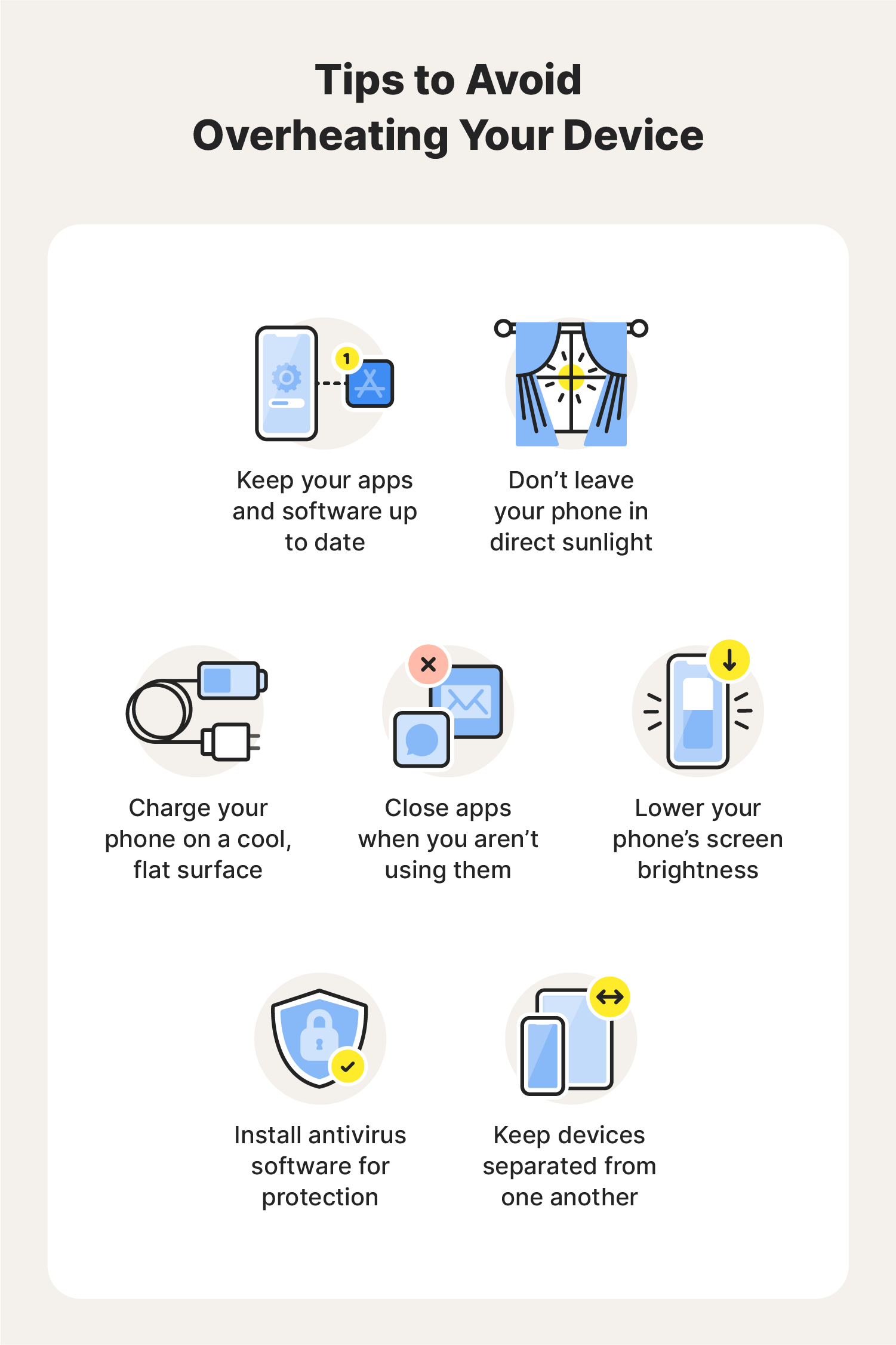
Your phone overheating can mean more than just heavy use. It might signal battery stress, software issues, or blocked ventilation. Small habits like closing unused apps or keeping your phone out of direct sunlight help a lot. Clean the vents, update the system, and charge wisely.
Every small step keeps your phone cooler and lasting longer. Stay alert to heat signs before they cause real damage. A cool phone runs smoother, faster, and safer. Treat it with care—it’s your daily essential, not just a device.